



Comprehensive guide to Pictalk Buddy: our digital companion for communication, visual schedule, sequences, and life journal with pictograms and images
What is Pictalk Buddy?
Pictalk Buddy is an application that will be the digital companion with a robust communication module, an adapted schedule, sequences, and a life journal for people with cognitive disability or neurodevelopmental disorder that make them more anxious and less autonomous throughout the day. For example, autism, ASD, DYS, Down syndrome.
We were inspired by communication binders and the paper weekly planner we had on our fridge, as well as more classic schedule applications. The app also offers sequences (or procedures) and journals.
Pictalk Buddy provides voice output via a synthetic voice and offers a pictogram search engine using ARASAAC, Sclera, Mulberry, Parlerpictos, and OpenMoji. Importing images from your photo library is also possible. Pictalk Buddy has a notification system to enhance autonomy.
Installation
The application is available on Android and on iOS. It is also possible to access the application simply via your web browser (Chrome, Safari, Firefox, etc) at this address: https://agenda.pictalk.org/
No account creation is needed to start using Buddy. Once the application is installed, it works offline to view events.
How to use it?
The application has five tabs:
|
|
The Schedule module |
The Sequences module |
|
Settings |
The Communication module
The Communication module of Pictalk Buddy allows non-verbal people or those with expression difficulties to build sentences, access their vocabulary, and be heard, with a natural voice and a tool designed for daily use.
Understanding the interface
The module is organized around a customizable pictogram grid. The grid layout promotes muscle memory: each pictogram always occupies the same place, enabling the user to navigate faster over time.
Extensive and progressive default vocabularies are integrated, constructed around the most frequent everyday words. They are adaptable to each profile and age, coming from the Open AAC database.
At the top left, a small arrow gives access to your vocabulary list. You can have multiple vocabularies depending on situations, for example, a quick mode with essentials and a complete mode for more elaborate communication. Each vocabulary can be configured independently: language, display type, color code.
At the top right, the three small dots provide access to display and editing options:
- Print an AAC board directly from the application
- Enable edit mode to modify the grid
- Change layout: grid (customizable number of rows and columns), fixed (same number of columns), or automatic (adapts to the device)
In edit mode, you can drag and drop pictograms to reorganize them. It is also possible to select multiple pictograms at once to edit, delete, hide, copy, or cut them.
Sentence construction and autocorrection
The sentence bar, at the top of the screen, displays selected pictograms as you build the sentence. By clicking on it, you access sentence mode: you can type with the keyboard, consult favorite sentences, or find already pronounced sentences.
To speak the sentence, press the blue button: the sentence displays in large on the screen. The back arrow to the right of the speech button lets you navigate through vocabulary without losing the current sentence.
Labels automatically adapt to the sentence subject and tense. The application learns from your corrections and vocabulary to become increasingly personalized. Several levels of autocorrection and expansion are available, including real-time next word suggestion, similar to a keyboard.
Settings
The entire Communication module is customizable. In the application settings, click on "Communication" to access the following adjustments:
- Auto correction: level of autocorrection and sentence expansion
- Vocabulary: management of pictograms and boards
- Sentences: configuration of the sentence bar and favorites
- Display: grid size, layout, visual theme
- Usage statistics: tracking vocabulary used, useful for families and professionals
The Schedule module
The Schedule module enables a clear and intuitive visualization of daily or weekly events thanks to customizable pictograms and images. Designed to facilitate users’ autonomy, this module also offers advanced features such as event repetition, integration of detailed sequences, and speech synthesis for content reading.
Understanding the interface
By default, the day's events appear vertically. Just scroll/slide down to discover events for tomorrow, the day after, etc. Each day has its own color, and the color theme can be changed in the settings.
As seen in the screenshot, past events are grayed out. Upcoming events (here "Return home") are shaded gray. This helps reduce the user's cognitive load when viewing the day.
To change the display direction or switch calendar views, click the three dots at the top right. You can then select or deselect a calendar. Print the current week or modify the display: 1) infinite vertical scrolling, 2) day-by-day, 3) week-by-week on tablet or computer.
I quickly modified the beginning of the "Return home" event so you can see how it displays when currently in progress.
A bar in the same color as the event symbolizes the elapsed time in the event. Once the bar is empty, the event is finished. A white circle, with a yellow dot, appears when sequences or tasks need validation. This is the case here with the Sequence: "Prepare the backpack".
If you click on the event, you access:
- A blue button to read the event aloud
- Detailed time slot (start time, end time)
- All images associated with the event
- A time timer if the event lasts less than an hour
- A GPS point with shortcut to Google Maps
Creating an event
Creating events is easy and essential for good use of Pictalk Buddy.
Each event includes several customizable properties:
- Title (visible directly in the Schedule view)
- Detailed description
- Start and end date and time
- Customized pictograms or images
- Possibility to include step-by-step sequences
- Repetitions and alarms for better routine
- Task or event for enhanced autonomy
- Optional address to facilitate travel
Each event can be vocalized thanks to an efficient speech synthesis, facilitating accessibility and autonomy.
The Sequences module
This module allows creating step-by-step visual sequences, useful to guide the user in daily activities such as brushing teeth or work-related tasks like maintenance of lawn equipment.
Understanding the interface
You can duplicate, modify, delete, export, and print sequences.
Creating a sequence
Creating a sequence with Pictalk Buddy is fast and intuitive.
Each sequence contains a clear title and is broken down into precise steps. Each step can include an image (pictogram or photo) or a video, accompanied by a custom audio recording or automatic playback by synthetic voice. You can categorize your sequences using labels such as Kitchen, Hygiene, Health, among others, facilitating their management and quick search. It is now possible to automatically generate a complete sequence thanks to artificial intelligence, greatly simplifying the creation process.
The Life Journal module
The life journal is an interactive digital diary that records daily moments: activities, outings, highlights; using photos, videos, pictograms, and text. It is especially useful for people who struggle to verbally tell their day: by browsing the journal together, they can show, comment, and share.
Understanding the interface
The life journal is organized in chronological posts. Each post can contain photos, videos, pictograms, and text. Journals are consultable offline and automatically synced across all devices.
Creating a post
Creating a post takes about two minutes. Add a title, media (photos, videos, pictograms), and publish. You can organize your journals by theme or by person.
Shared journals
It is possible to create shared journals, accessible to multiple people or an entire group. On a shared journal, members can comment on posts, react, and see who has read each message. This tool is particularly useful to maintain links between family, educators, and accompanying professionals, while keeping a common record of the person's journey.
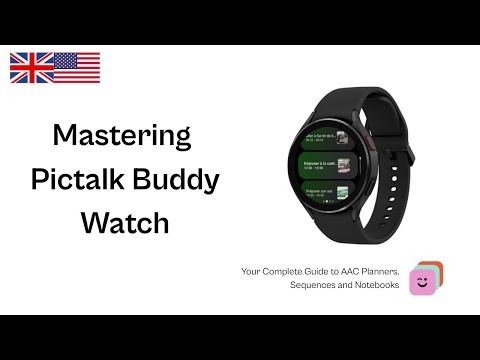
Pictalk Buddy Watch
Pictalk Buddy is also available on smartwatches (WearOS 3+). The app allows access to the schedule, sequences, and communication directly at your wrist.
The watch displays the current event, allows task validation, consultation of upcoming events for the week, and triggering sequences. Personalized notifications and alarms arrive directly on the wrist to support autonomy throughout the day.
For installation, pairing, and detailed features, consult the Pictalk Buddy Watch guide.
Settings
To suit the widest range of needs, Pictalk Buddy offers many customization options
- Adjustable interface size (normal, large, XL)
- Color configuration adapted to different vision disorders (protanopia, deuteranopia, tritanopia)
- Precise synthetic voice configuration (voice choice, speed, pitch)
Features for healthcare professionals:
Pictalk Buddy offers a Pro version for organizations supporting multiple people: special education centers, sheltered workshops, SESSAD, CAMSP, schools, etc. It allows managing individual profiles, sharing content (schedules, sequences, life journals) among team members, and granting family access at no extra cost — all from an administrator account.
Pro access is granted through membership to the Pictalk association. To learn more and schedule a call with our team, consult the Pictalk Buddy Pro guide.
Other tutorials
The TechLab of APF France Handicap (written by Aurélie RÉGENT) created a great guide about Pictalk Buddy (formerly Agenda CAA) at this address: https://techlab-handicap.org/produit/agenda-caa/
Ressources école inclusive also made a tutorial of the previous version of the app available here: https://ressources-ecole-inclusive.org/agenda-caa/