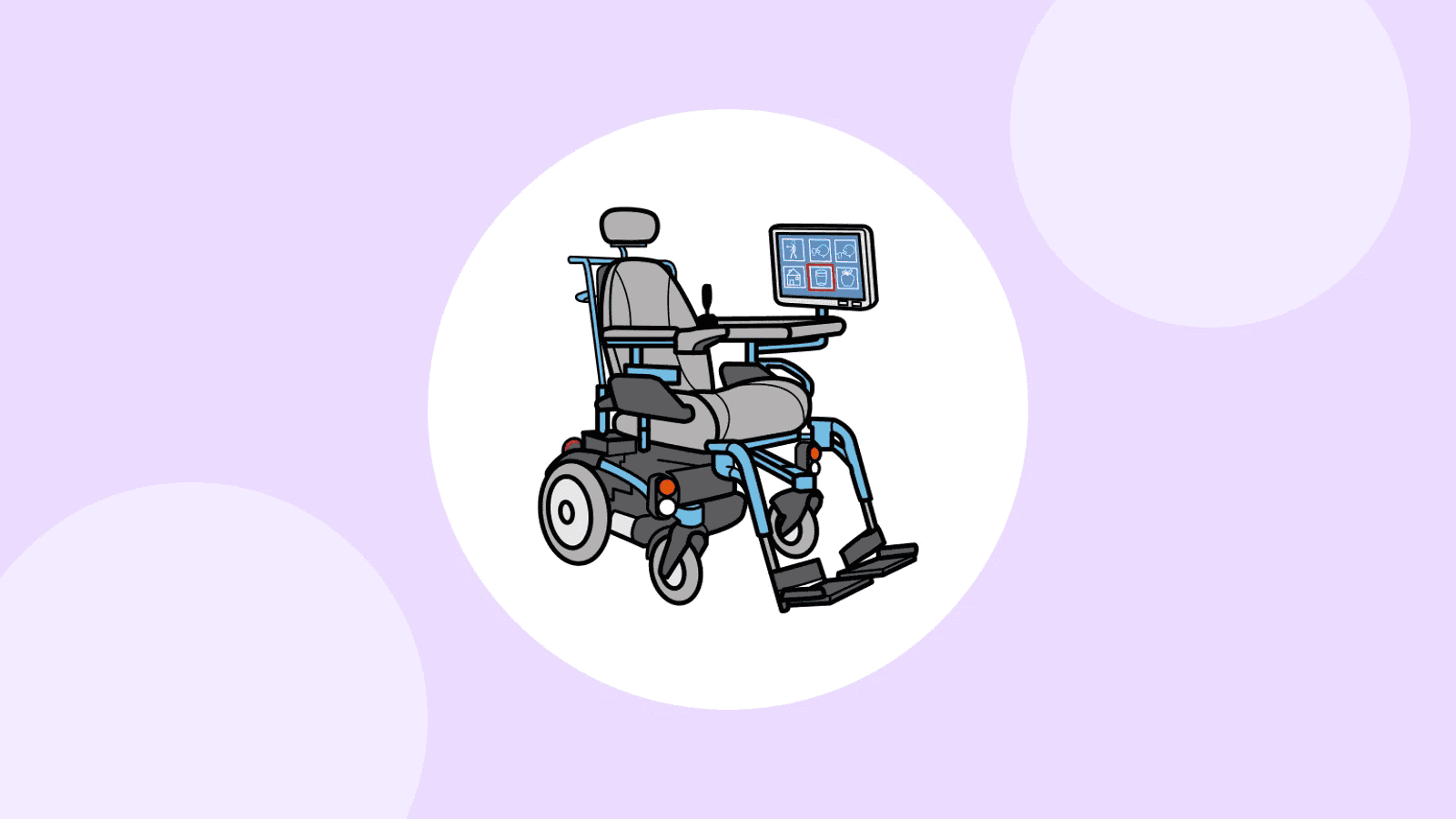

When the body responds with difficulty, the first question is not ‘which words?’ but ‘how will the person choose them?’. The access method (a finger, a hand, a switch, the eyes, a partner who offers the options) determines the size of the cells, how many there are and how they are laid out. The approach (Beukelman and Light, 2020): position the person, try direct selection, then scanning, and keep a no-tech solution.
Who is this for?
In cerebral palsy, the type of motor impairment guides the choice of access:
- spastic: stiff muscles, limited movement;
- dyskinetic: involuntary movements, muscle tone that varies through the day;
- ataxic: problems with balance and precision.
Cerebral visual impairment, epilepsy and learning disability are common. At age 4, 32% of children with cerebral palsy had no speech (Hustad et al., 2010); others are understood well only by those close to them.
There are no prerequisites: nobody is ‘too disabled’ to communicate (see Myths about AAC).
Start with positioning
Before adjusting a tablet, adjust the person’s position. Good positioning improves accuracy on AAC targets (Costigan and Light, 2010). The occupational therapist and the physiotherapist are key partners.
- Screen angle: flat, it supports the arm; between 30 and 45° is a common compromise; more upright for a light pointer or head pointer; close to vertical for eye gaze or head tracking.
- Reflexes: if turning the head triggers an arm movement (asymmetric tonic neck reflex), place the screen in the middle. If lowering the head triggers limb movements (symmetric tonic neck reflex), place it at eye level.
- Most skilful side: frequent words and small targets go on the side where motor control is best.
Which access method should you choose?
 TouchA finger or hand, directly on the screen
 SwitchThe options are scanned, a press selects
 Eye gazeA camera follows the eyes
 HeadA pointer or camera follows its movements
Direct selection first
Direct selection is assessed first, trying in this order: the hand or arm, then the eyes, then the head or face, then the foot or leg. When movement is imprecise, specialist tools offer:
- hold time: the cell is only selected after a sustained press, which avoids accidental selections;
- activation on release: you put your finger down, slide it, and the cell is chosen when you lift your finger;
- averaged activation: the tool keeps the cell touched for longest;
- keyguard: a plate with holes that sits over the screen, which requires a perfectly stable grid.
Larger targets mean fewer cells per page: see Organising the grid.
Switch scanning
When direct selection is too imprecise, slow or tiring, you move on to scanning: the options light up one after another and the person presses a switch at the right moment. It is slower and takes longer to learn.
| Mode | How it works | Who it suits |
|---|---|---|
| Automatic | The highlight moves on by itself; a press selects | People who find it hard to keep a switch pressed |
| Directed (inverse) | Hold the switch to move on, release it to select | People who press by accident while waiting |
| Step | Each press moves on one cell | Rarely in the long term: very tiring |
The scanning order is a vocabulary choice: urgent and frequent messages come first. Animating the highlighted cell helped young children learn (McCarthy et al., 2006).
Pictalk Buddy offers simple scanning: row by row, then cell by cell, selected with a switch, the Space or Enter key, or a gamepad button. You can adjust the speed, a ‘Minimum press duration’, activation on release and the ‘Ignore presses too close together’ option. Compatibility with the operating system’s access features (Switch Control, Switch Access) has not been tested. Buddy has no eye-gaze control.
 The rowThe rows light up one after another; a press chooses the right one
 The cellThe cells in that row light up; another press selects
The partner, and different methods for different moments
Without technology, the partner says or shows the options one at a time, and the person signals when the right one comes up: a valuable back-up, and sometimes the main solution. The best method varies with the time of day, fatigue, position and the person helping: eye gaze in the wheelchair, partner-assisted scanning in bed. Adjusting the settings based on data improves speed, even after an expert set-up (Koester and Simpson, 2014, 2019).
Take vision into account
For people with cerebral visual impairment (CVI), Beukelman and Light (2020) recommend: a dark background, few symbols, saturated colours (red, yellow), real photos, little clutter around them, stable positions, and time to look. Vision can fluctuate, and sometimes improves. Background colours by word type do not replace contrast (see the Fitzgerald colour code).
Eye gaze: what you need to know
How does it work?
A camera under the screen follows the person’s gaze, after a calibration in which the person follows dots. To select a cell, there are three options: dwell time, a deliberate blink, or a switch. They can also be combined: the eyes choose an area, and a switch scans the options inside it.
It is worth considering when the hand is not accurate, fast or enduring enough: in MND, where eye movements are usually spared (see AAC for adults), in locked-in syndrome or after a brainstem stroke, once a reliable yes/no is in place, and for some people with cerebral palsy or Rett syndrome.
What solutions are there?
| Solution | What it is | Good to know |
|---|---|---|
| Eye-gaze frame (E-tran) | Letters or messages on a transparent frame; in ‘eye linking’, the partner moves it until their eyes line up with the person’s | Costs almost nothing; people with MND found eye linking faster (Roman et al., 2010) |
| Dedicated device | AAC tablet or computer with a built-in camera | Often supplied with a wheelchair or bed mount |
| Add-on camera | A separate camera, on a Windows computer or some tablets | Can cost less, but needs more setting up |
| Built-in eye tracking | On recent iPhones and iPads since 2024, using the front camera | Accuracy to be assessed case by case against a dedicated camera |
| Head tracking | A camera or pointer that follows head movements | When the head is more reliable than the eyes |
As for software (September 2026 prices, device not included):
- TD Snap (Tobii Dynavox), on iPad and Windows, stands out for eye gaze and often comes on the brand’s dedicated devices. €9.99/month, plus €4.99/month per module. See TD Snap alternative.
- Grid (Smartbox) is the reference for complex access (eye gaze, switches, joystick, head); on Windows, Grid 3 also controls the computer and the environment. €11.99/month or €299.99 on iPad, about £550 excl. VAT for Grid 3. See Grid alternative.
The settings that make the difference
- Calibration, to be redone when the position changes.
- Dwell time: too short, it causes unintended selections; too long, it is tiring.
- Cell size: eye gaze generally needs larger targets, so fewer cells per page.
- Light: direct sunlight or a reflection can disturb the camera.
Always a plan B
Eye-gaze cameras work poorly when the person is lying down. In a clinic specialising in MND, three quarters of eye-gaze users also used a method read by someone close to them, in bed, in the bathroom or in the car. Plan for a rich main system, a small set of care messages for bed or personal care, and a yes/no signal that is on display and known to everyone.
Try it, then fund it
- Test one solution at a time, over several weeks (see Choosing a tool: paper, tablet, trial).
- Set the tool up fully for one priority situation before judging it.
- Observe accuracy, speed, fatigue and, above all, the person’s preference: respecting their choice helps learning (van der Meer et al., 2011).
- Beware of a common bias: choosing the system the professional knows best.
A complete solution often costs several thousand pounds. Who pays depends on the person’s needs and where they live (NHS, education, charities): see Funding AAC: how to prepare a funding request.
Profound and multiple learning disabilities: reading and building signals
Many people with profound and multiple learning disabilities (PMLD) communicate through very personal signals (a look, a sound, a movement), without symbols. Beukelman and Light’s (2020) guidelines:
- Respond to every signal as if it were intentional: name it, respond to it, then show a more conventional form.
- Tell reflex from intention. A head turn caused by a reflex is not a refusal. Intention can often be recognised by persistence, a change of strategy and turning towards the partner.
- Accepting or rejecting is not answering yes or no. Accepting or rejecting an offer (‘Do you want some juice?’) comes early; confirming a fact (‘Is it a dog?’) comes much later.
- Offer choices step by step: one object to accept or reject, then two objects well apart, then more.
- Use real objects or tactile symbols when pictures are not yet understood.
Write down each signal, what it means and the expected response in a communication dictionary, displayed where the person lives: see the ‘How to talk to me’ card. In specialist settings, AAC belongs in a setting-wide plan: see AAC in specialist settings.
Frequently asked questions
How long does it take to master eye gaze?
One expert user estimated that he needed about 96 hours of practice, whereas the usual training on a device lasts 2 to 6 hours (Horton et al., 2001). The people around the user need training too.
Do you have to relearn everything when access changes?
Not if the vocabulary stays the same: ideally, words keep their place when moving from touch to a switch, then to eye gaze, as in MND, where access changes as the disease progresses.
Pictalk Buddy brings together AAC boards, a visual schedule, guided sequences and notebooks, with the same symbols, on Android, iOS, the web and the watch. A pay-what-you-want app, developed by a non-profit association. Discover Buddy
Sources
- Beukelman, D. R. & Light, J. C., 2020, Augmentative & Alternative Communication (5th ed.), Paul H. Brookes, chapters 2, 7, 8, 9, 10 and 14.
- Studies cited from Beukelman & Light (2020): Hustad et al. (2010); Costigan & Light (2010); McCarthy et al. (2006); Koester & Simpson (2014, 2019); Roman et al. (2010); van der Meer et al. (2011); Horton et al. (2001).
- Official websites of Tobii Dynavox, Smartbox, AssistiveWare and Avaz, and the French App Store, accessed in September and October 2026.